Memory Card Recovery Deep Search Mode
In Order to recover deleted data, first you should connect your memory card with computer system. Then start recovery process. After installation of Memory card recovery software, initial screen is displayed as shown in below screen :-
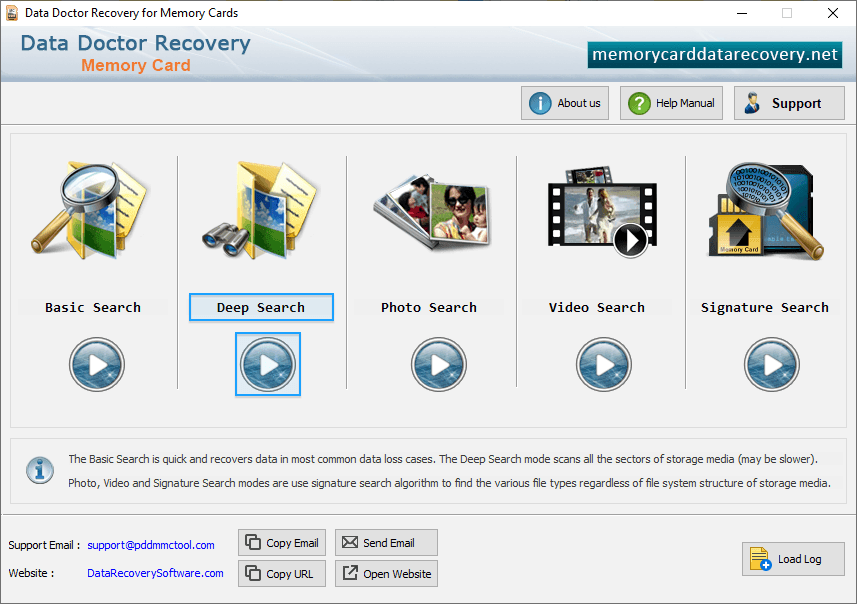
In the page, we will discuss how to recover data from memory card using Deep search recovery mode.
Step 1 : Select disk for Recovery
Select disk in the available logical or physical drives from which you want to recover data
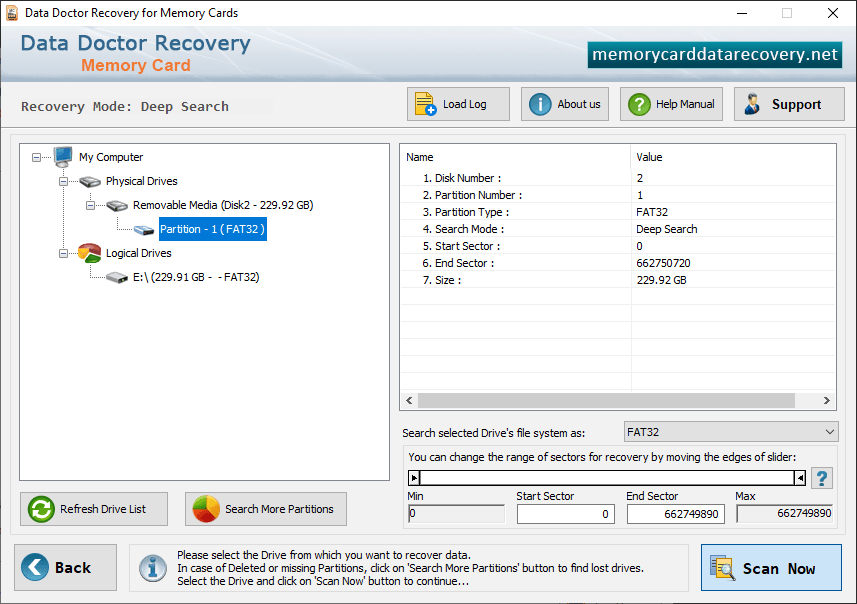
Step 2 : Select Partition
Memory card recovery software searches lost data:-
In specific partition
If you want to search lost data in a "specific partition of disk", Select the partition from which you want to recover data.
Now Click on “Next” button
Step 3 : Scanning ProcessWait until software completes disk scanning process.
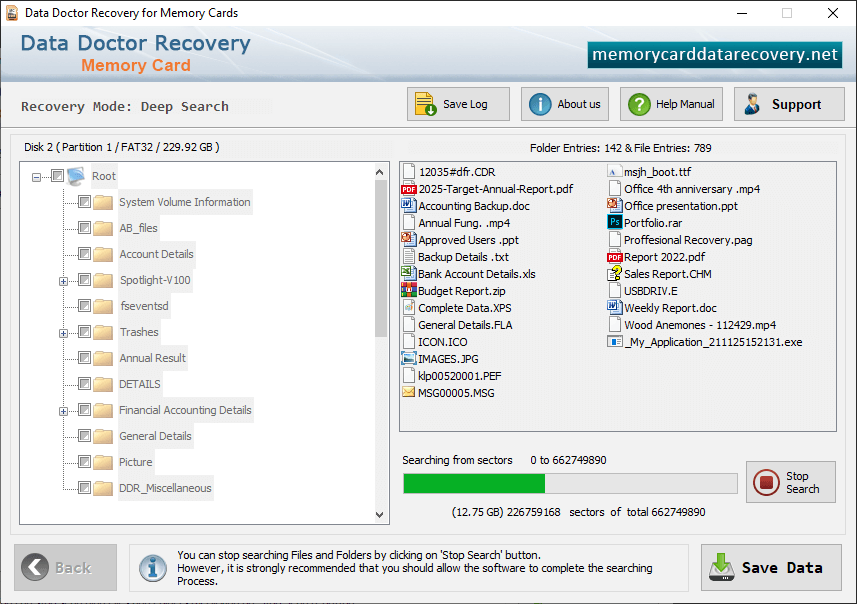
Scan result is shown in tree structure.
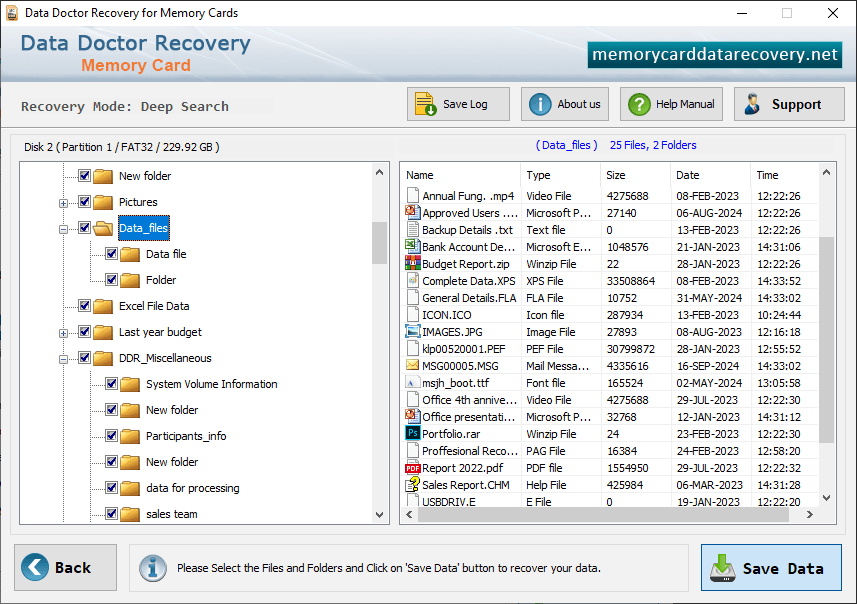
Start saving recovered data by clicking on “save” button.
Now click on “browse” to select the destination path, where you want to save data.
Note: Please select only different destination drive to save the recovered data. Saving data in same drive/volume may cause overwriting and you may lose data for forever.
Click on “OK” button.
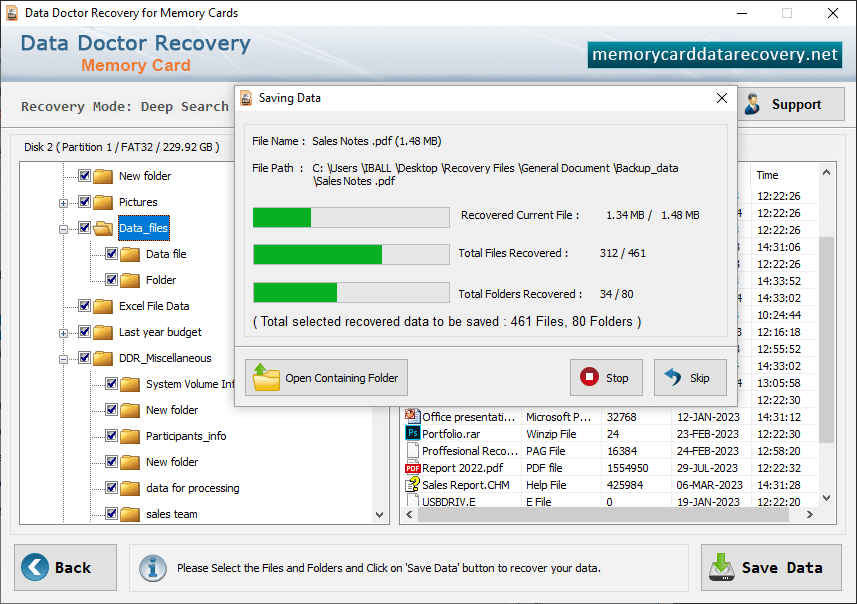
Then start saving the selected files in selected destination path as follows:
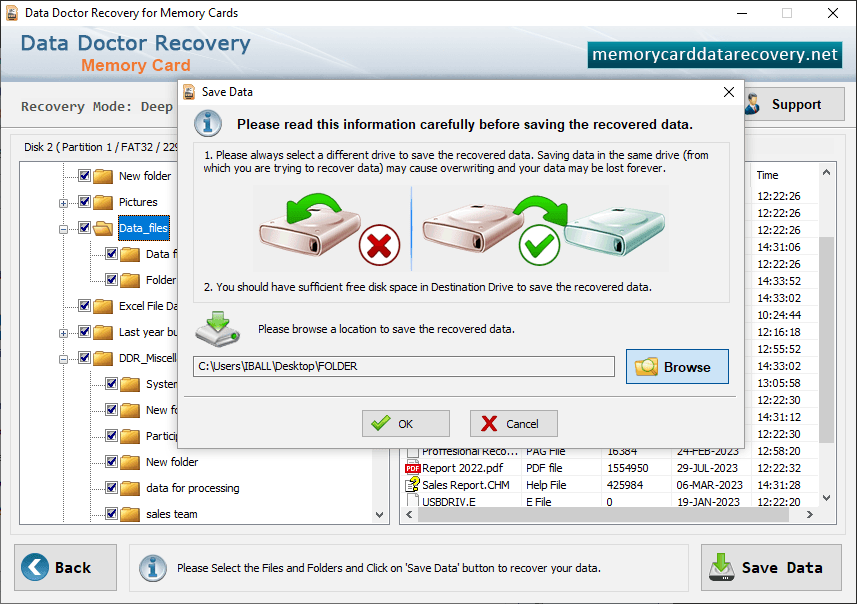
Select the folders from Left Panel Directories Tree and click on "Save Data" button in Toolbar or right click to save recovered files and folders.